GB WhatsApp Update Failed? How to Fix Common Errors
If your GB WhatsApp update fails, shows a parsing error, or refuses to install, the cause is usually a corrupted download, insufficient storage, an Android compatibility issue, or a conflict with the version already on your phone. This guide walks through the most common causes and the safest order to troubleshoot them.
Why Do GB WhatsApp Updates Fail?
Because GB WhatsApp is distributed as an installation file rather than through an official app store, updates do not happen automatically. Each update is a manual installation, which introduces several failure points:
- The downloaded file is incomplete or corrupted.
- The phone does not have enough free storage space.
- Your Android version is too old or too new for that particular build.
- The new file conflicts with the app version already installed.
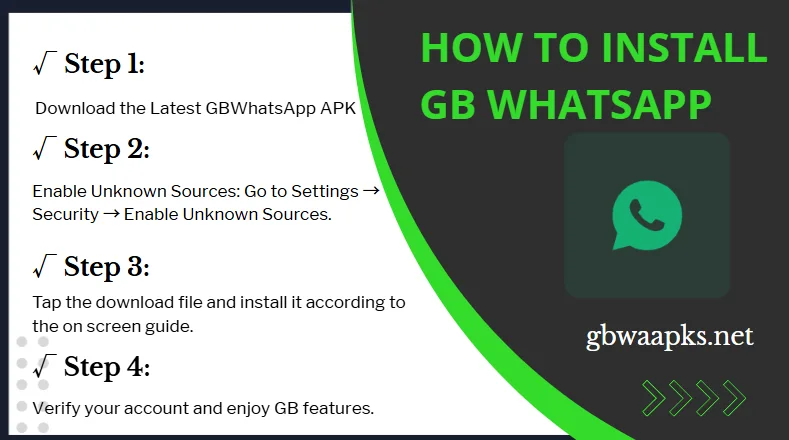
- Security settings block the installation of the file.
Not every update installs cleanly on every device, and no guide can guarantee success for every modified build.
Check the Downloaded File and Storage Space
Start with the two most common and easiest problems to rule out.
- Delete the downloaded installation file and download it again from the source you normally use, on a stable connection. Interrupted downloads are a leading cause of files that will not open.
- Compare the file size shown by your browser or file manager with the size stated on the download page, if one is listed. A much smaller file usually means an incomplete download.
- Check free storage in your phone’s settings. Clear space if you are low, because installation needs room for both the file and the unpacked app.
- Try opening the file again after re-downloading, and note the exact error message if it still fails.
Check Android Version and App Compatibility
Each build of a modified app targets a range of Android versions. If your phone falls outside that range, installation can fail or the app may crash after updating.
- Find your Android version in your phone’s settings, usually under an About phone section.
- Check any requirements stated for the GB WhatsApp build you are installing.
- If your Android version is not supported, look for a build that matches your device rather than forcing the newest one. Our older versions page may help if your device needs an earlier build.
Understand Installation and Signature Conflicts
If the download is fine and compatibility checks out, the remaining common cause is a conflict with the app already installed.
Android refuses to update an app when the new file is signed differently from the installed one. Different modified builds of GB WhatsApp are often signed by different people, so installing one build over another can trigger an installation conflict error. The same problem can occur when switching between variants that use the same internal app identity.
In that situation, the only paths are to use a build signed by the same source as your current app, or to remove the conflicting app first, which is exactly why the backup step below matters so much. Do not delete app data or uninstall anything until your chats are safely backed up.
Back Up Before You Try Again
Any update attempt that involves uninstalling can wipe your chat history. Take precautions first:
- Use the app’s available backup option to save your chats, and confirm the backup completes.
- Copy important media files and the app’s backup folder to a computer or another safe location.
- Verify the backup files exist and have a reasonable size before proceeding.
- Only then consider reinstalling or switching builds.
Never clear app data or uninstall just to make an update work before you have confirmed your backup is usable. If you are unsure, keep the current version running, an app that works is better than an update that costs you your messages.
When an Update Still Will Not Install
If you have re-downloaded the file, freed storage, confirmed compatibility, and resolved conflicts, but the update still fails, the build itself may be faulty. In that case:
- Wait for a corrected release from the same source rather than trying random files from unknown sites.
- If the app becomes unstable after failed attempts, our guide on fixing GB WhatsApp not responding may help stabilize it.
- Remember that different modified versions can conflict with each other, and there is no universal fix that works across all of them.
For communication you cannot afford to lose, consider keeping the official WhatsApp app available as a fallback from an authorized app store.
Frequently Asked Questions
Why does my GB WhatsApp update say there was a problem parsing the package?
This error usually means the downloaded file is corrupted or incompatible with your Android version. Re-download it on a stable connection and confirm the build supports your device.
Do I need to uninstall GB WhatsApp before updating?
Usually no, if the new build is signed by the same source as your current one. If a signature conflict appears, uninstalling may be required, so back up your chats first.
Will updating GB WhatsApp delete my chats?
A normal in-place update keeps your data. Uninstalling, clearing app data, or switching between differently signed builds can erase it, which is why a verified backup is essential.
Why does the installation get blocked by my phone?
Android may block apps installed from outside official stores. Check your device’s setting for installing apps from unknown sources, and only enable it for the file manager or browser you are using.